
If somebody sent you a meeting link and you are opening it on your own phone or laptop: install the one called Zoom Workplace. It is the ordinary app, it is free to download, and it is the only one you need to join a call.
Everything else on this page is for a situation you were probably not in — a phone your employer controls, a room with a screen on the wall, or a school Chromebook.
Zoom the company has several downloads with Zoom in the name. They are not versions of each other, they are not upgrades of each other, and you cannot tell most of them apart by looking at them. Here is what each one is for, in plain terms, and which one a normal person should install.
First, the naming trapThe main app is not called “Zoom” any more
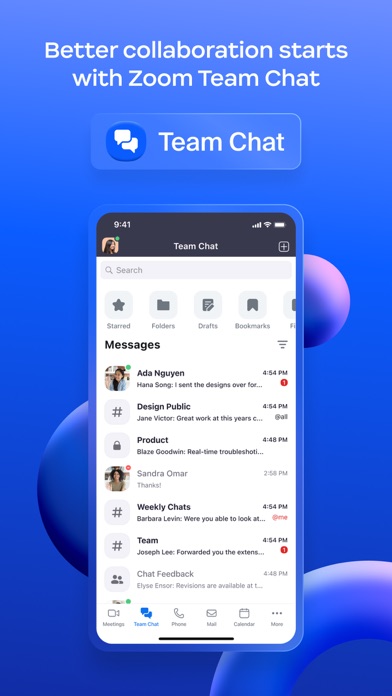
This trips everybody once. For years there was one app, called Zoom. The company then gathered its other products — team chat, a phone system, calendar, email, notes, whiteboards — into that same app and renamed it Zoom Workplace. The icon is still the lowercase word “zoom” in white on a blue tile, with no camera in it anywhere; the older help articles and screenshots you will find by searching keep the old name, and the store keeps the original app’s long history under the new title. So when you search for “Zoom” you get a pile of results, several of which are genuinely different programs.
The useful thing to know is that the ordinary app is now a bundle of tools rather than a meeting client with extras. In its own words:
Zoom Workplace, from the description Zoom supplies on its store listing.
You do not have to use any of that beyond the meetings. But it explains why the app is a large download and why the first screen you see is not a dialler.
The one you wantZoom Workplace — for a person with a meeting link
Zoom Workplace
Free · formerly just “Zoom” · phone, tablet and computer
What it is for. Joining a meeting someone else started, or starting one yourself. It also does the group video call with your family, the one-off job interview, and the call where you are presenting from a laptop.
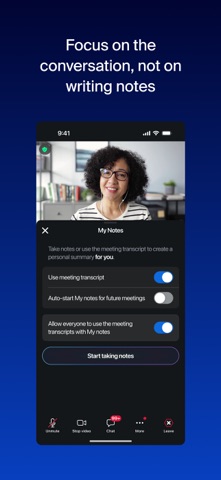
What you get. Video and audio, screen sharing, chat inside the meeting, a waiting room if you are the host, recording if your plan allows it, and a set of note-taking and summary features that have grown a lot in the last couple of years.
Who it suits. Almost every reader of this page. If you were told “we are on Zoom”, this is the download.

Work phonesZoom Workplace for Intune — the same app, with your employer’s rules on it
The second one people meet by accident. It is the same Zoom Workplace inside, with a management layer attached, and it exists for one situation: your company lets you use a personal phone for work and wants the work part of that phone to be controllable. The phrase you will see is BYOD, which means “bring your own device”, and the layer is a way of putting company rules around one app without taking over the whole handset.
Zoom Workplace for Intune
Free · same app, managed wrapper · for work accounts
What it is for. Being pointed at by an IT department, not by you. Zoom describes who it is for without much diplomacy:
Zoom Workplace for Intune, from its own store description.
Same listing — Zoom sending ordinary people away from this one.
Inside, the two builds look the same. Outside, they do not: the managed app’s icon carries a small white briefcase set in a darker blue corner triangle, which the ordinary app does not have. That badge is the fastest honest test on a crowded home screen, and it is the one thing you can check without opening anything or signing in. If you are worried about what an employer can see, the questions then are: is that briefcase icon on my phone, which account is signed into it, and did they hand it to me. Two habits cover most of the risk — keep a personal Zoom signed in to a personal account, and if your employer has ever mentioned a management profile on your phone, ask before signing into anything personal there.
The room stuffZoom Rooms — the screen on the wall, and the tablet by the door
This is where people assume there are five products and there is really one. The software that runs a conference room is called Zoom Rooms, and the same download can be configured to behave as several different things depending on what hardware it is on:
Zoom Rooms, from its store description.
Translated into what you will see in an office:
Zoom Rooms
Free · one app configured several ways · room hardware
You will almost never install this yourself. If you are on a work laptop and the room is not behaving, you normally open the ordinary Zoom Workplace app and join the meeting from your own machine, and the room simply follows it.

The confusing one: your phone turning into the room
There is a feature that looks like a bug when it happens to you. Zoom lets you pair a phone to the room you are standing in, so your handset becomes the controller — handy when the wall tablet is on the far side of the glass. When it is paired, the app says which room it is attached to, and the meeting list you see underneath belongs to that room rather than to your own diary.
Zoom Rooms, from its store description.

The practical consequence: if you have ever tapped “control room” or accepted a prompt in a glass-walled office, your phone may still be the room’s controller when you get back to your desk. Unpair it, or the next time you start a meeting it may start it on the conference screen while you are trying to work quietly.
Schools and cheap laptopsZoom on a Chromebook
Chromebooks are a separate case, and they generate a lot of confusion in classrooms and in offices that replaced laptops with them. The Zoom client for Chrome OS is not a phone app that happens to run on a laptop; it is built for that environment, and in schools it is often set up by whoever administers the devices rather than by the person using them.
Zoom on Chromebook
Chrome OS build · common in schools · sometimes managed
What it is for. Joining and hosting meetings on a Chromebook, including in environments where nobody is allowed to install anything without approval.
Why it feels different. On locked-down school or work devices, the version you get, whether it can be updated and which features are switched on are all decided elsewhere. That is why two people in the same class can have slightly different Zooms.
Not verified here We could not reach the store that distributes this build from the network used to write this article, so we cannot tell you its exact requirements, package or supported devices. If you manage Chromebooks, check your own admin console rather than this paragraph.
Short versionWhich one to install
| Your situation | Install | What to expect |
|---|---|---|
| Somebody sent you a meeting link on your own phone or laptop | Zoom Workplace | A large first download, an account sign-in, then a join button |
| Your employer sent you a link to an app “for Intune” | Zoom Workplace for Intune | Identical-looking app; sign in with the work account, not your personal one |
| You are setting up or troubleshooting a meeting room | Ask IT before installing anything | The room software is configured by whoever owns the hardware |
| Your phone says it is paired to a room you have left | Nothing | Unpair it in the app; you do not need a second download |
| A school or work Chromebook | Whatever the device owner allows | The build and its features may be fixed by an administrator |
Questions people actually searchQuick answers
Is the app called Zoom or Zoom Workplace? Do I have the right one?
If it says Zoom Workplace, that is the current ordinary app and you have the right one. Older pages, screenshots and colleagues will keep saying “Zoom”. Both names point at the same product; the rename was not a new download you have to make.
Why are there two Zoom icons on my phone?
Usually the ordinary app and the managed one, installed at different times. They are separate programs and can stay on the phone together, and once both are installed you can tell them apart by the icon: the work one has the small briefcase in the corner. Most people do not need both; the managed one is there because an employer put it there.
Can my employer read my personal Zoom if I have the managed version?
We are not able to answer that for your phone, and anyone who answers it in one sentence online is guessing. What the managed build is for, in Zoom’s own words, is helping an organisation “protect corporate data” on personal devices. The safe habit does not depend on the answer: keep personal sign-ins off a device your employer manages.
The room screen is not working. Which app fixes it?
None that you install. The controller tablet and the room computer run as configured by whoever set up the room. The thing you can do on your own is open the ordinary app on your laptop and join the meeting there, then check your phone is not still paired to the room as its controller.
Is one of these the “pro” version I have to pay for?
No. All of them download free. What you pay for is the account — how long meetings can run, how many people fit, whether recording and some assistant features are switched on. The same free app behaves differently depending on which account you sign into, which is why two people on the same version get different limits.
How to check for yourselfThree things to look at before you install anything
- Read the whole name under the icon, not the brand at the top of the page. “for Intune”, “Rooms” and similar suffixes are the entire difference between the app you wanted and the one you did not. Then look at the icon itself: the extra mark bolted onto the corner or the bottom of the blue tile — a briefcase on the work build, a signalling screen on the room build — is there for exactly this reason.
- Look for the line that says which devices it needs and how big the download is. Two builds of the same product can ask for different versions of iOS, which is how a perfectly good older iPhone ends up refusing to install one of them.
- Check who published it. On both major stores the publisher name is a field you can read in a second, and it tells you whether you are looking at the company’s own app or somebody’s imitation of it.
What we did and did not do hereHow this was written
Nobody at Dlzer enrolled a device, configured a conference room or ran a managed deployment to write this. The product descriptions quoted above are the ones Zoom supplies for each listing, and we read them as served by the store; the room-mode list, the paired-controller behaviour and the managed-build wording all come from those descriptions rather than from our own testing. Which one to install is our reading of what those descriptions say, and it is advice about choosing, not a claim that we have used every edition in production.
One thing we deliberately did not do is publish a ratings figure or a download count for these apps. They move constantly, and an article like this one should still be useful months after it was written. If you want to compare popularity, look at the store page while you are there.
Our own pages for these products are where you will find the longer feature lists and screenshots we hold for each: Zoom Workplace, the managed build, the room app and the Chromebook client. They sit on the communication and workplace apps hub. If any of them is out of date or says something wrong, tell us and we will fix the page.
- Quoted product descriptions — the store text Zoom Communications supplies for Zoom Workplace, Zoom Workplace for Intune and Zoom Rooms, retrieved from the store’s own public catalogue interface and checked word for word against this page after normalising quotation marks.
- Screenshots and app icons — vendor-supplied listing images served by the store, not by Dlzer. They are Zoom’s own promotional pictures, which is why the captions say what is visible in each frame rather than treating them as evidence of how the software behaves. Names of people and rooms that appear inside them are Zoom’s sample content.
- “Formerly just Zoom” and the tool list — our reading of the current listing and of what the app is named today, from the same record.
- Not verified — anything about the Chrome OS build beyond its existence and purpose. Its distribution page was unreachable from our network and we have said so in the section rather than filling the gap.
Written by the Dlzer editorial desk. Not affiliated with, endorsed by or sponsored by Zoom Communications. Zoom, Zoom Workplace, Zoom Rooms and Intune are the property of their respective owners and are used here to identify the products we are describing.