
The timeline is a preview; the export is a render. They are two different passes over your project, and four separate things can make the second one disagree with the first. Two of those are settings you chose, one is a vendor feature that changes weekly, and one is how screens describe colour.
None of them means the app broke. All of them are checkable in about two minutes before you commit to a render.
What the company itself saysThe export step is a set of choices, not a copy button
CapCut, from its own app-store description (BYTEDANCE PTE. LTD.).
That single sentence names the three dials that most “why does my export look different” mysteries come down to: resolution, frame rate, and HDR. A preview is drawn live on your screen at whatever the phone can manage; an export is rebuilt at the settings you picked. Different pass, different maths, sometimes a visibly different file.

Cause oneThe look was a trending effect, and trending things move
Same description.
The vendor says the quiet part: its filter library is updated weekly. An effect is not a permanent ingredient like a clip; it is a named style with a version behind it. If a style’s strength shifts, or its name resolves differently after an update, your timeline can show one thing while the render applies the current one. Vendor statement
What you saw in the timeline
A live preview of the effect as the app currently draws it, on your screen, at editing resolution.
What the export rebuilds
The same effect, re-applied at export resolution and frame rate, by the renderer — on every frame, in order, with the settings you picked. Where the two disagree, the export is the one that ships.
Cause twoHDR, stated in the vendor’s own words
“Smart HDR” in the export sentence is the feature most people have never consciously chosen. An HDR file looks richer on a screen that supports it and noticeably off — washed, flat, or oddly contrasted — on one that does not, and on platforms that convert it. If your exported video looks different on other people’s phones than it did on yours, this is the first suspect, and it is a switch in the export settings rather than a defect. Vendor-claimed feature Our reading of which symptom it causes
Cause three and fourSettings drift, and the preview’s shortcut
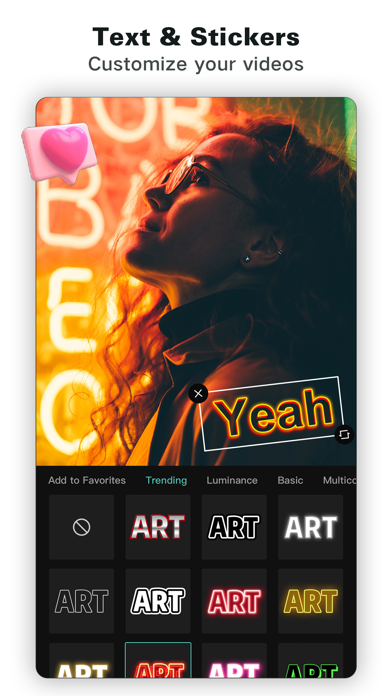
Third: export settings are remembered per app, not per project. The 4K 60fps the description advertises is available to you, but if the last project you exported set a lower resolution or a different frame rate, that is what this one inherits. Fourth: a preview is often drawn from lowered-quality copies of your clips so editing stays smooth on a phone. Fine for judging timing; misleading for judging sharpness, fine text, and dark scenes. The render uses the real clips, and it exposes softness the preview hid. Our explanation of the mechanism
The two-minute checkBefore you export anything you care about
- Export settings, out loud.Resolution, frame rate, HDR on or off. If you cannot say them, you have not chosen them — the app has.
- Where will this be watched?A file destined for a platform that converts HDR may be better exported with it off. This is a taste decision worth one test export.
- Screenshot the timeline.One frame of your preview, next to the same frame of the export. If they differ, the screenshot tells you whether the difference is colour, sharpness, or a missing effect — three different fixes.
- Re-apply the look if a style changed.Do not chase a vanished filter through settings; re-select it from the current list or replace it with one that has not moved.
- Keep the project until the platform copy looks right.The draft is the only thing that can produce a second render. Deleting it to free space is how people lose the ability to fix this at all.
CapCut’s help pages were not reachable from the network used to prepare this article, so we cannot tell you the current names or locations of its export options, whether any tier limits them, or how its watermark behaves — none of that is in the store description either, and we will not guess at it. The three vendor-quoted sentences above are from the description BYTEDANCE supplies for its own listing; the two mechanism explanations are our reading, and the five checks are advice, not test results. We exported nothing for this piece.
- Three quoted sentences — the app description the developer supplies for its own store listing, retrieved from the store’s public catalogue interface and compared word for word with this page.
- Two store images — supplied by the developer and served by the store; captions describe what is actually visible.
- The four causes, the preview-versus-render explanation and the five checks — our editorial analysis of how preview and export pipelines differ. Marked as ours throughout, and not confirmed by testing.
Our page for the app is here; it sits on the tools and devices hub with the rest of the editing apps we list.
Written by the Dlzer editorial desk. Not affiliated with, endorsed by or sponsored by ByteDance. CapCut is that company’s product and mark, used here to identify the app; quoted lines are its statements about its own product.