
The security promises are in the bullet points. The conditions are in a footnote at the bottom. Gmail’s listing tells you the machine learning blocks “more than 99.9%” of the bad mail, and it tells you the AI writing tools are the ones carrying an asterisk — the same asterisk that ends with an instruction to check the machine’s work yourself.
Everything quoted is Google’s own description text for its own app listing.
The claimThe same number, written two different ways
Gmail listing, the feature bullets.
Same listing, several lines later, inside the Google Workspace section.
Read side by side, the two sentences are not quite the same claim. One measures what reaches your inbox; the other measures what reaches users. One drops the conjunction and reads as a list of three threats; the other names the mechanism. Nobody is arguing the number is fake — the point is that a listing can carry the same statistic twice with two different scopes, and a reader who quotes one of them aloud has no way to know which was meant.
| The sentence | Its stated scope |
|---|---|
| “…from ever reaching your inbox” | Your mailbox, as a container |
| “…from reaching our users” | People, across the service |
| “Our machine learning models block…” | Names the method: a model, not a rulebook |
The asteriskWhere Gemini sits in the listing
The AI bullets come first and read as features: “Use Gemini* in Gmail to summarize lengthy emails, craft or refine responses, or search your inbox to find what you’re looking for”. The work-side sentence is longer: “Use Gemini in Gmail features like Help me write, Suggested Replies, AI Overviews, and Proofread to help you stay on top of work and take care of simple tasks”. And there is a styling promise: “Respond to emails faster with AI-powered Suggested Replies that understand the context of your emails and match your unique tone and style”.
“*Some Gemini features may require a Google One AI subscription. Internet connection required. Language and country availability may vary. Check responses for accuracy.”
Four conditions in one line, printed after everything else. “Some” is not defined, so you cannot tell from the listing which of the named features sit behind the plan; “may vary” means the screenshot you watched this week may not describe your account; and the final sentence — check responses for accuracy — is Google telling you that the summarising and drafting are not finished until you have read them.
That last clause is worth dwelling on because it changes what the feature is. A summary that must be verified against the original is not a substitute for reading the thread; it is a way of deciding which part of the thread to read. For a long vendor email that is genuinely useful. For a message you are about to forward to a client without opening, it is the opposite of a safety net.
What is plainly freeThe unglamorous bullets
Stated without conditions in the listing
- “Undo send for up to 30 seconds, to prevent embarrassing mistakes”
- “Declutter your inbox with built-in email subscription management”
- “Connect and switch between multiple email accounts from different providers”
- “Make Gmail your default email app on iOS”
- “Swipe to archive/delete, to quickly clear out your inbox”
Two of these deserve more attention than they get. “Undo send” is a thirty-second window and nothing more — it is not a recall, and it will not retrieve a message that has already been read. And subscription management, the feature that helps you cancel mailing lists, is one of the few places an app actively helps you receive less, which is unusual enough to point out.
The framing sentence covers the rest: “The official Gmail app brings the best of Gmail to your iPhone and iPad with helpful AI features, robust security, real-time notifications, multiple account support, and intelligent search that works across all your mail.”
The two Gemini listsAn asterisk in one, and not in the other
Something in the structure of this listing is easy to miss because the two halves look alike. In the personal-mail section, the AI line is written with a marker: “Use Gemini* in Gmail to summarize lengthy emails, craft or refine responses, or search your inbox to find what you’re looking for”. In the work section, a longer list of the same kind of features carries no marker at all: “Use Gemini in Gmail features like Help me write, Suggested Replies, AI Overviews, and Proofread to help you stay on top of work and take care of simple tasks”.
That is not sloppiness. It is two different billing realities in one description. On a personal address, the footnote governs: some of those features hang off a plan, and the app does not know which ones you have until you tap them. On a work address, the same features are governed by whatever licence your organisation bought, so the app’s description cannot promise anything either way — and, tellingly, does not try to. If you are the person who pays for a small business’s Workspace, the useful action is not reading this listing but looking at your own admin console, where the features are switched per user.
What acts before you askFour sentences about convenience, read as a set
The description contains several lines that are individually dull and jointly interesting, because each one describes Gmail doing something to your mail before you open it:
Quoted exactly, in the listing’s own order
- “Stay up to date on your latest packages, upcoming events, bills, and travel details with helpful summary cards”
- “Quickly add events to Google Calendar based on your emails with Gemini in Gmail”
- “Find top deals faster with a personalized Promotions tab”
- “Access Google Meet and Google Chat without leaving Gmail”
Read the first three together and the model of the product changes: the inbox stops being a list you read and becomes a set of objects extracted from it — a parcel, a flight, a bill. That is genuinely useful, and it also means a machine has been deciding which messages matter enough to summarise, on your behalf, before you have formed a view. The fourth sentence does the same thing from the other side: your mail client is now also the front door to meetings and chat. Whether that is a simplification or a concentration depends a lot on how many accounts you keep in one place; if you run personal and work addresses in the same app, the sentence reads differently than it does for someone with one address.
The summary-card feature is the one to test deliberately. Check a card against the message it came from once or twice, especially for anything with a number in it — a delivery date, an amount due, a check-in window. A card that is ninety percent right is worth having, and a card that is wrong about a date is worse than no card at all, because it looks finished.
What the 99.9% does not coverThe gaps are in a different category
“Organize your mail by labeling, starring, deleting, and reporting spam” sits in the same list as the security claim, and it is the honest reminder of how the other half works: a report button exists because the filter is not perfect, and the improvement loop runs on your reports. Which is worth remembering when judging what a block rate does and does not include.
The number in the listing is about volume — mail that never reaches you. The messages that cause real damage are almost never high-volume. An invoice from a domain registered last week that speaks to you in your supplier’s exact wording, with the right reference numbers because someone’s mailbox was read earlier, is not a spam problem. It is a fraud problem, and it arrives in the Primary tab with no warning at all. Nothing in a store description can be blamed for that distinction, but a reader who takes “99.9%” as a statement about safety rather than about quantity is reading the wrong thing.
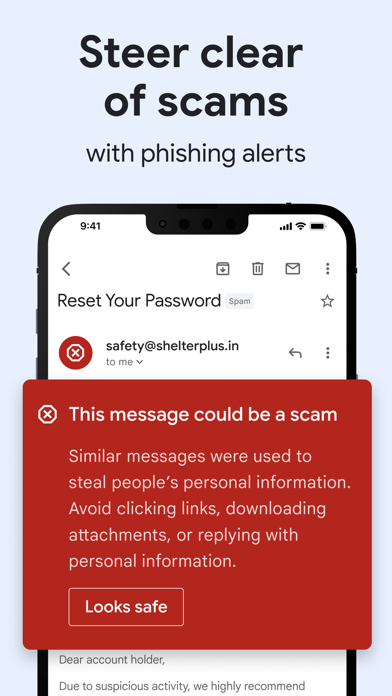
The same caution applies to the phishing screen in this article’s picture, which is a good design: a warning box that explains why the message looks wrong, and a button labelled “Looks safe”. A warning you can dismiss in one tap is education, not protection — which is exactly what it is for, and exactly what it cannot do for you at two in the morning when the email looks like it came from your bank.
Five settings worth five minutesOnce, then forget them
Five settings worth five minutes, once
- Decide whether Gmail should be your default mail app on iOS. The listing offers it as a feature — “Make Gmail your default email app on iOS” — and it changes which app opens a tapped address on the whole device.
- Turn on undo send and set the window to the longest option you can tolerate. “Undo send for up to 30 seconds, to prevent embarrassing mistakes” is a ceiling, not a fixed value, and thirty seconds is a real safety margin on a message with an attachment you forgot.
- Look at what the subscription-management screen offers. “Declutter your inbox with built-in email subscription management” does the unglamorous work of finding the mailing lists, which is where the volume actually comes from.
- Check which accounts are signed in on this device. The app advertises switching between providers; each one is a separate decision about what a lost phone can reach.
- If it is a work address, remember who else has a claim on it. “Gmail is part of Google Workspace, allowing you and your team to easily connect, create, and collaborate.” is also the sentence that tells you an administrator exists.
Google’s own help centre and workspace pricing pages were not fetched for this article, so nothing here names a price, a plan name beyond “Google One AI subscription”, or the exact taps to change a setting. The listing does not say which Gemini features are gated, so neither does this page. If a feature described here is missing from your app, the plan and the region conditions in that footnote are the first two places to look — the third is your workspace administrator, if the address belongs to one.
- All quoted sentences — the app description Google LLC supplies for the Gmail listing, retrieved through the store’s public catalogue interface and compared word for word with this page.
- One store image — supplied by the developer; the caption transcribes the headline and the warning box as they appear.
- Our own reading — the two-sentence comparison, the reading of “check responses for accuracy”, and the note on undo send. Not Google guidance.
Gmail’s page here is this one, on the communication and workplace hub. Related: subscriptions hide in a different menu than purchases, and how to find the meeting link a colleague sent you three days ago.
Written by the Dlzer editorial desk. Not affiliated with, endorsed by or sponsored by Google. Gmail, Gemini and Google Workspace are Google’s marks, used to identify the product; quoted lines are Google’s own description of what it does.
[…] page here is this one, on the tools and devices hub. Related: some Gemini features in Gmail cost extra, and the codes that do not come with you when you change […]